MyNest
Version 1.1.0 · 2 October 2026

Get MyNest

Pick your computer and phone. No matter which brands you mix and match, MyNest gets them talking directly.

Works Across Every Brand

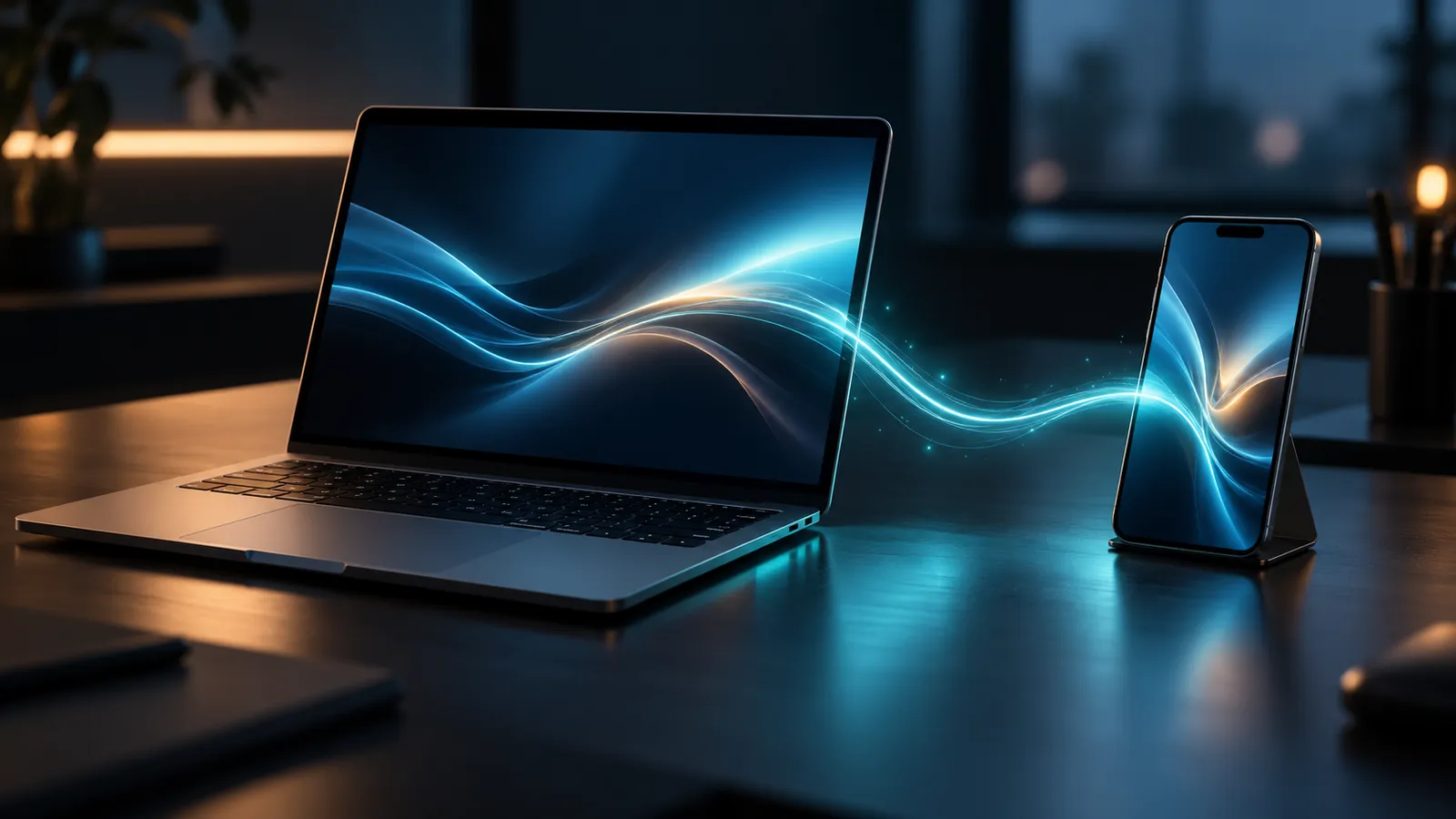
No brand walls: Apple wants you on a Mac and an iPad. Microsoft prefers Windows and Android. MyNest connects whatever hardware you already own, whether that's Windows with iPhone, Mac with Android, or Linux with an iPad. No vendor lock-in and no third-party cloud syncing needed.

A laptop and a phone on a dark desk, linked by a trail of cyan light

Windows PC agent

Windows 10 or 11, 64-bit · 49.2 MB

Download for Windows
  • Single portable file. No installation needed. Just launch it to view your pairing code.
  • Windows SmartScreen may show an unrecognised app alert while the agent is not yet code-signed. Click More info → Run anyway.
  • No firewall configuration needed: the agent only connects outbound to your devices.
Verify the download (SHA-256) 7549ccefc844756890541caa5f0fe21ed3d66a94e28dcf2c22f50d90bfbd907f

In PowerShell: Get-FileHash .\MyNestAgent.exe
Android app

Android 7 or newer · 131.1 MB

Download for Android
  • Download the APK file directly on your phone. Android will ask to approve installs from your browser or file manager the first time.
  • Coming to Google Play Store soon.
Verify the download (SHA-256) f807f671df71f3e1e056c8e3f331c6d5cd27e7fb08e5490b30c992def4d34fbb

Set up in three steps

  1. Launch MyNest Agent on your PC. It shows an 8-character pairing code and a QR code.
  2. Open the MyNest phone app, create an account or sign in, tap Add PC, and scan the QR (or type the code).
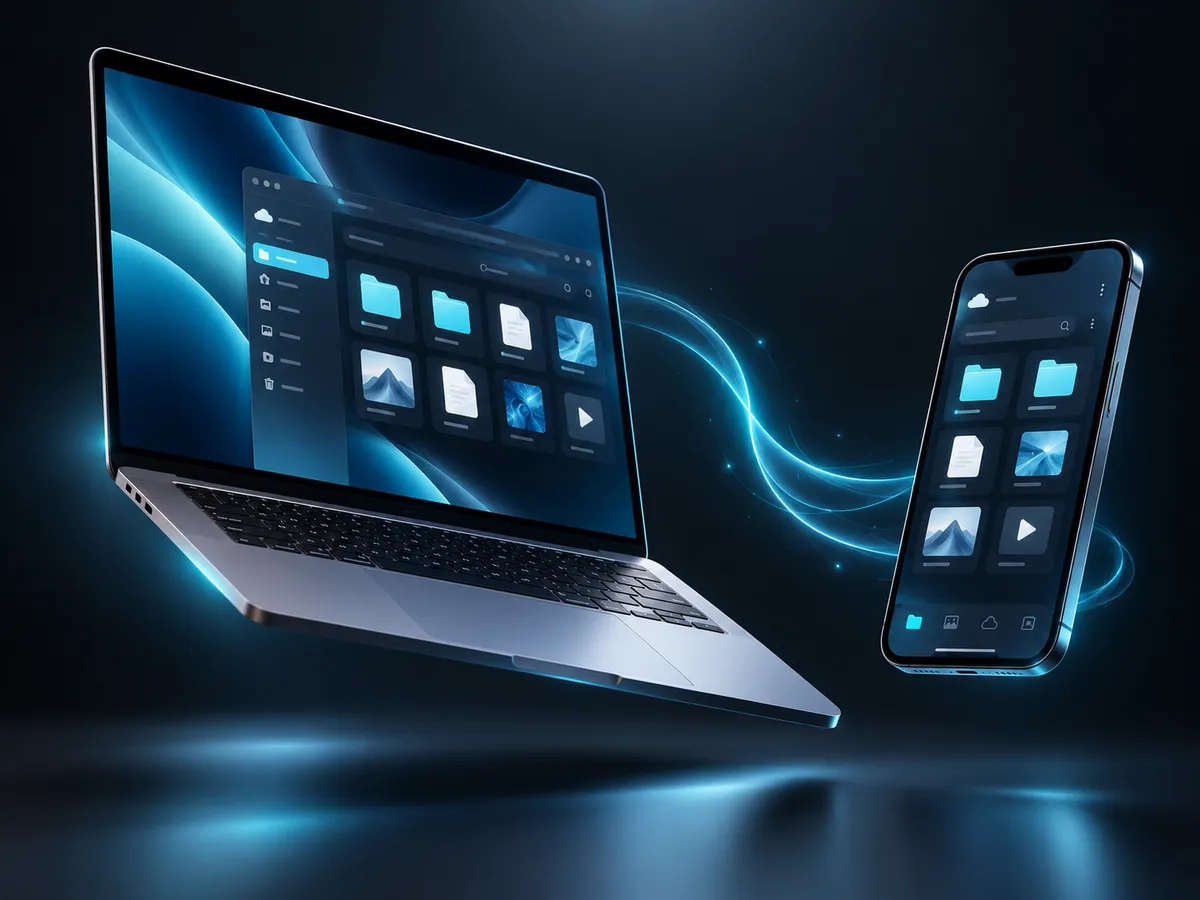
  3. You're connected. Your phone can browse files right away. When you want to edit files or run commands, turn on permissions in the app under Settings → PC permissions.

Questions? Check the FAQ or contact us.